Showing posts with label mssql 2008 R2. Show all posts
HOW TO SAP - CHECK ACTIVE MS SQL TRANSACTION
July 06, 2011
mssql 2008 R2,
SPID kill,
Log files grow and unable to shrink even after backup.
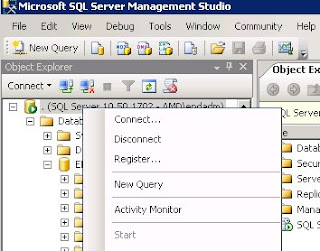
- Launch MS SQL Server Mananagement Studio
- Execute SQL command > DBCC OPENTRAN
- You will get below result. You notice the SPID is 76

- Go > Management > Activity Monitor

- Now you find your SPID running

- Just right click and kill the SPID. It might take more then 1 hour before the process is killed/rollback
HOW TO SAP - Create Database in MS SQL 2008
April 08, 2011
create database,
mssql 2008 R2,
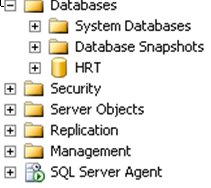
- Two types of database – system database(MS SQL) and user database (HRT)
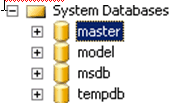
- Master: MS SQL database. Contains info of all physically files, configuration.
- Model : template dataabase
- msdb : manage sql server agent configuration.
- tempdb: store temporary tables
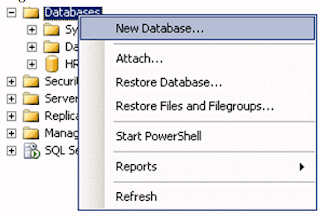
- Right click databases > new database
- Enter TST as database name
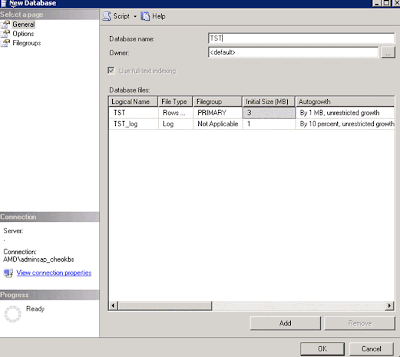
- For the 1st data file , the extenstion should end as *.mdf
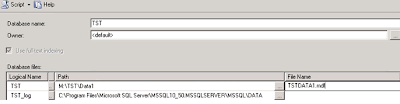
- Click Add (for new data files)
- Logical name TSTDATA2, Path M:\TST\Data2\, File name : TSTDATA2.ndf
- For other data files, remember extension should be *.ndf

- TST_Log path is M:\TST\Log1, File name: TSTLOG.ldf
- Remember logfiles extension is *.ldf

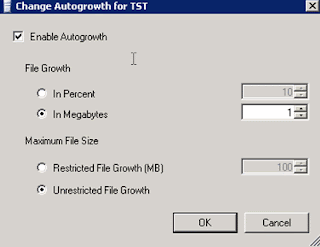
- Double click cell under Autogrowth. Settings can be change here.
- Ok
- Ok
- Database created.
HOW TO SAP - Restore MSSQL 2008 R2 Database
March 24, 2011
Database,
mssql 2008 R2,
restore,
** You must have a backup files in order to perform restore.
** We are not recovering up to point in time.
** We do no need tlog files.
** We are not recovering up to point in time.
** We do no need tlog files.
- Execute MSSQL Management Studio
- Right click Databases > Restore database

- Enter database name and souce for restore (choose from devices)

- Add the *.Bak files. Click OK

- Check Restore and click ok

- Click Option > Restore the database files as >

- Give a path and give file name. REMEMBER:
- 1st first file name must end with *.mdf,
- 2nd and other datafiles are *.ndf
- Log files are *.ldf
Sample as below:

- Recovery choose 1st option

- Click OK and wait for execution to finish

- Completed

HOW TO SAP - Install MS SQL 2008 R2
February 24, 2011
installation,
mssql 2008 R2,
- If there is an existing MS SQL running, detach database and uninstall existing MS SQL.
- To uninstall, Control Panel > programs and feature > remove MS SQL
- Removing existing

- Once done, go back to Control Panel > programs and feature > remove MS SQL Native Client

- Once complete, run the MS SQL 2008 R2 Setup.exe
- Select New Installation or add features to an existing installation

- Next all the way until you reach "Feature Selection". Select following feature:

- Next All the way until you search "Server Configuration". Select SQL_Latin1_General_CP850_BIN2

- Next all the way until "Database Engine Configuration". Choose data root directory path where data files are stored.

- Next all the way and you are done.
Subscribe to:
Posts (Atom)
Designed By: Blogger Templates | Templatelib