HOW TO SAP

Step by step manual guide with screenshot for Basis, Security Authorization & Abap

Popular Posts

  • Table USR02 - User Lock value
    Execute SE16 Enter USR02 Below are the value and its description: Value: 0 Not locked 16 Lock 32 Locked by CUA admin (User Ad...
  • SAP SECURITY INTERVIEW - FIND USER ID FROM TABLE PA0105
    You only  have Personal Number (PERNR) or Email (USRID_LONG) as reference SE16 > PA0105  Now enter PERNR or USRID_LONG SUBTY must be...
  • SAP SECURITY - Create authorization object and assign to user
    Authorization Objects are used to manipulate the current user's privileges for specific data selection and activities from within a pro...

Blog Archive

  • ▼  2019 (14)
    • ▼  July (4)
      • How to change SAP script - SE71
      • STMS – Transport management system. How to do tran...
      • SAP Basis – Daily check list
      • SAP R/3 Tips and Tricks – Cheat Sheet for Intervie...
    • ►  June (8)
    • ►  May (2)
  • ►  2018 (1)
    • ►  January (1)
  • ►  2017 (65)
    • ►  December (16)
    • ►  November (18)
    • ►  October (26)
    • ►  September (1)
    • ►  August (3)
    • ►  June (1)
  • ►  2014 (1)
    • ►  August (1)
  • ►  2013 (2)
    • ►  December (1)
    • ►  March (1)
  • ►  2012 (5)
    • ►  June (3)
    • ►  February (2)
  • ►  2011 (88)
    • ►  October (3)
    • ►  September (8)
    • ►  August (8)
    • ►  July (4)
    • ►  June (14)
    • ►  May (22)
    • ►  April (11)
    • ►  March (14)
    • ►  February (2)
    • ►  January (2)
  • ►  2010 (1)
    • ►  October (1)
  • ►  2009 (17)
    • ►  October (12)
    • ►  September (1)
    • ►  August (3)
    • ►  June (1)
  • ►  2008 (20)
    • ►  January (20)
2013-2017. Powered by Blogger.
HOW TO SAP

SAP SECURITY - MASS CHANGE USER LICENSE VIA SU10

December 16, 2017   mass change user license, SU10,


  1. SU10 > Authorization Data > User > Multiple Selection
  2. Choose copy from txt file (if you have it in txt format) or clip board (if you click copy paste)
  3. Click Copy and it will bring you back to previous screen
  4. Click Execute
  5. Select All user
  6. Click Transfer
  7. You will get back to SU10 main screen again
  8. Click Change
  9. License data Tab > Select your desired user license from drop down list
  10. REMEMBER TO CHECK "CHANGE"
  11. Now Save and continue
  12. Once finish, log will be displayed for your reference
Continue Reading

SAP SECURITY : GRC maintaining Workflow CUA system

December 15, 2017   portal, user,


  1. Open http://domain.com/useradmin
  2. Login with an adminsitrator
  3. Enter an user ID and click  Go
  4. Default only display 5 row. To change go to
  5. Upper right of the browser and select 'SHOW ALL'
  6. Done
Continue Reading

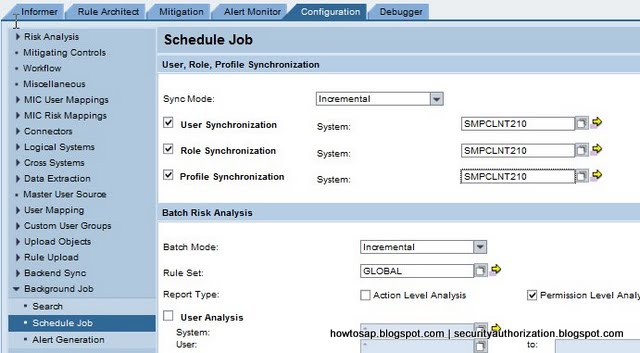
GRC does not process report real time. It has to be schedule as a job for RAR reporting to work.

December 13, 2017   grc, Schedule RAR job,

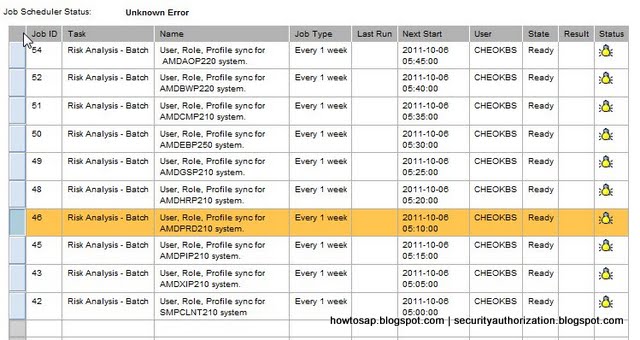
  1. Schedule USER, ROLE, PROFILE SYNCHRONIZATION. This job is used for Batch Risk Analysis job later for reporting
  2. GRC > CONFIGURATION > SCHEDULE JOB > Check only the 3 below > Then click schedule button at the bottom
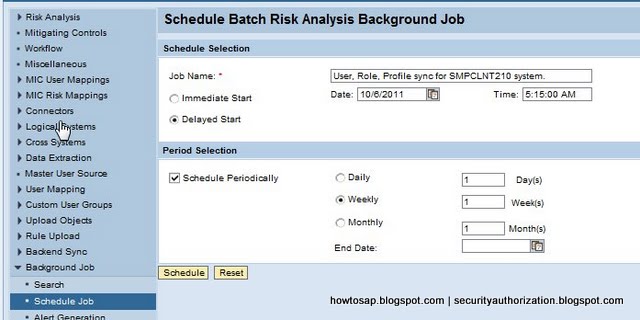
  3. Give a Job name > You may specify any options you like > Click Schedule. In our case, it will run weekly starting from 6th Oct 2011
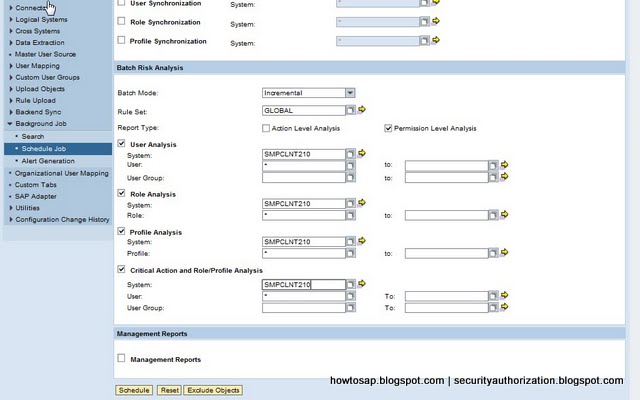
  4. Now schedule a new job > Select the 4 check box below > Click Schedule at the bottom
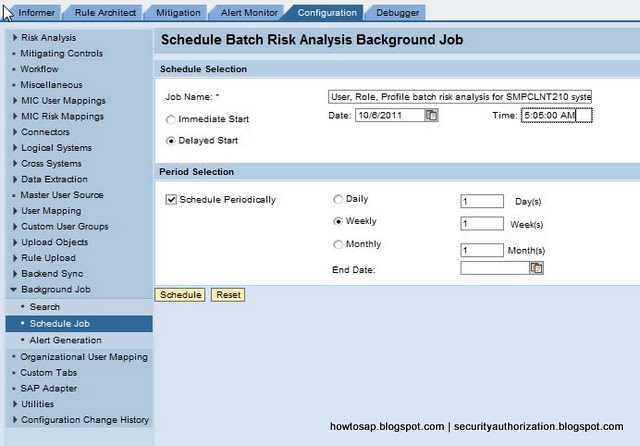
  5. Same as before, just specify a job name and any option you like. Now click schedule again.
  6. To check if the job you schedule is ready or running, just click "SEARCH"
  7. Then enter the search criteria and result will show as below:


Continue Reading

SAP SECURITY EXPORTING USER EMAIL

December 11, 2017   email, search from table,
To extract user's email, you may search from table USR21 and ADR6


  1. SE16 > USR21 and enter user ID
  2. Copy the PERNR (personal number) 
  3. SE16 > ADR6 and paste the PERNR
  4. You will get a list of email addres
Alternatively, you may replace Table ADR6 with  PA0105 but this table only exist in HR system.
Continue Reading

SCUM SETTINGS - LOGON DATA TAB

December 10, 2017   logon data, scum,

SCUM SETTINGS - LOGON DATA TAB has the following settings as below:

Global
You can only maintain the data in the central system. The data is then automatically distributed to the child systems. These fields do not accept input in the child systems, but can only be displayed.

All other fields that are not set to “global” accept input both in the central and in the child systems and are differentiated only by a different distribution after you have saved.
Proposal
You maintain a default value in the central system that is automatically distributed to the child systems when a user is created. After the distribution, the data is only maintained locally, and is not distributed again, if you change it in the central or child system.
RetVal
You can maintain data both centrally and locally. After every local change to the data, the change is redistributed to the central system and distributed from there to the other child systems.
Local
You can only maintain the data in the child system. Changes are not distributed to other systems.
Everywhere
You can maintain data both centrally and locally. However, only changes made in the central system are distributed to other systems, local changes in the child systems are not distributed.
Continue Reading
Newer Posts Older Posts Home
Subscribe to: Posts (Atom)
Designed By: Blogger Templates | Templatelib