HOW TO SAP

Step by step manual guide with screenshot for Basis, Security Authorization & Abap

Popular Posts

  • How to change SAP script - SE71
    1. Firstly open SE71. Enter the Form name. 2. Click change 3. Click on Page window 4. You can now change the attributes. 5. O...
  • HOW TO SAP - SAP Web dispatcher Installation
    Login with adm. Create folder SAPWEBDISP in usr\sap\ Download latest web dispatcher from services.sap.com and save it to above folder...
  • HOW TO SAP - Create RFC TCPIP connection and Register Server Program with RFCEXEC
    Execute SM59 Expand TCP/IP connections > Click Create Enter the following details. Ensure connection type is 'T' Save a...

Blog Archive

  • ▼  2019 (14)
    • ▼  July (4)
      • How to change SAP script - SE71
      • STMS – Transport management system. How to do tran...
      • SAP Basis – Daily check list
      • SAP R/3 Tips and Tricks – Cheat Sheet for Intervie...
    • ►  June (8)
    • ►  May (2)
  • ►  2018 (1)
    • ►  January (1)
  • ►  2017 (65)
    • ►  December (16)
    • ►  November (18)
    • ►  October (26)
    • ►  September (1)
    • ►  August (3)
    • ►  June (1)
  • ►  2014 (1)
    • ►  August (1)
  • ►  2013 (2)
    • ►  December (1)
    • ►  March (1)
  • ►  2012 (5)
    • ►  June (3)
    • ►  February (2)
  • ►  2011 (88)
    • ►  October (3)
    • ►  September (8)
    • ►  August (8)
    • ►  July (4)
    • ►  June (14)
    • ►  May (22)
    • ►  April (11)
    • ►  March (14)
    • ►  February (2)
    • ►  January (2)
  • ►  2010 (1)
    • ►  October (1)
  • ►  2009 (17)
    • ►  October (12)
    • ►  September (1)
    • ►  August (3)
    • ►  June (1)
  • ►  2008 (20)
    • ►  January (20)
2013-2017. Powered by Blogger.
HOW TO SAP

HOW TO SAP - Install MS SQL 2008 R2

February 24, 2011   installation, mssql 2008 R2,


  1. If there is an existing MS SQL running, detach database and uninstall existing MS SQL.
  2. To uninstall, Control Panel > programs and feature > remove MS SQL
  3. Removing existing


  4. Once done, go back to Control Panel > programs and feature > remove MS SQL Native Client

  5. Once complete, run the MS SQL 2008 R2 Setup.exe
  6. Select New Installation or add features to an existing installation

  7. Next all the way until you reach "Feature Selection". Select following feature:

  8. Next All the way until you search "Server Configuration". Select SQL_Latin1_General_CP850_BIN2

  9. Next all the way until "Database Engine Configuration". Choose data root directory path where data files are stored.

  10. Next all the way and you are done.
Continue Reading

HOW TO SAP - How to sent popup message to SAP user

February 11, 2011   popup, sent message,
  1. Execute se37
  2. Run TH_POP and Test/Execute (F8)

  3. Type in the client, user and also message. Hit Execute.
  4. You should see this message on the screen.
Continue Reading

HOW TO SAP - Password prohibition table - USR40

January 12, 2011   Authorization, password, USR40,
Table USR40 contains the prohibited password. To view the password follow the following:

1. SE16 > USR40


2. F8 and you will see the list of password


3. From here you may change, edit and remove from Menu > Table Entry

Continue Reading

HOW TO SAP - Work Load Monitor - ST03N

January 12, 2011   monitor, PERFORMANCE,
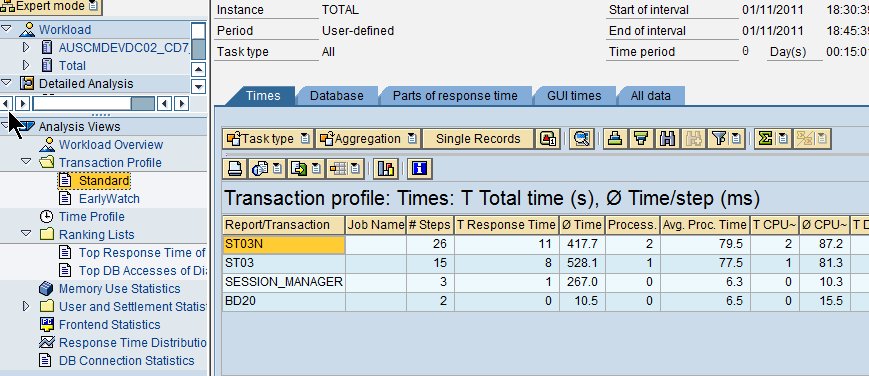
ST03N is used to analyse system performance. It can also be used to to monitor workload & transaction executed by use

1. ST03N > Last minute load > Total > Enter username & select transaction profile with screen > Execute


2. Goto Analaysis views > Transaction Profile > Standard

 3. You man then see the tcode execute and also the respond time taken.
Continue Reading

Going for interview tomorrow

October 25, 2010  
It has been a long time since my last post. I've stop working in SAP industry for almost a year. I will go for an interview tomorrow. Wish me luck! Continue Reading
Newer Posts Older Posts Home
Subscribe to: Posts (Atom)
Designed By: Blogger Templates | Templatelib