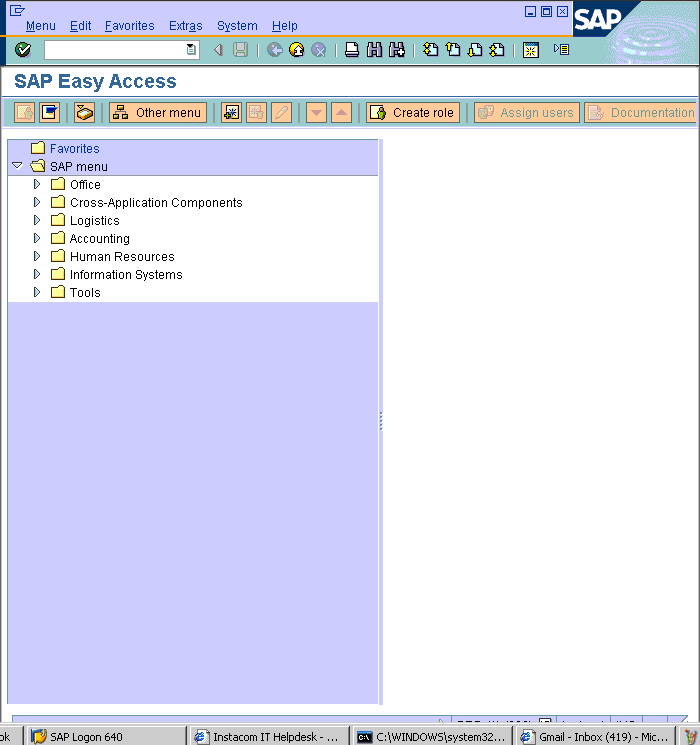
- Logging on without being authorized
Client 066 usually exists in a SAP system due to EarlyWatch services. Often this
client does not have master users. If it is true, anyone can log into the
system using the client 066, user SAP*, and password PASS. Enjoy yourself.
- Specialcopy and paste
Click on the area and press CTRL+Y. It allows you to copy many lines at once
and paste them afterwards.
- Long messages on footer
Click on the message and hold the mouse button. After moving the mouse to the
left side.
- Direct input logs
The transaction BMV0 (direct input logs) shows all direct input logs.
- Graphics on SAPscript
The program RSTXLDMC can be used to upload graphics (file extension .tif on
PC files) into individual standard text.
- Adding icons
Check the icon code using transaction ICON. A technical view can be found at
the include named «ICON». Sequences of characters begin and
finish with the symbol @. Even plain files under operating system can contain
those strings.
- Filling up an empty date field quickly
Strike the key F4 (or click on matchcode symbol) and press ESCAPE. The current
date is automaticly set.
- Setting up module FI/CO without using IMG
Almost all parameters can be set using the transactions ORFA (Asset Accounting),
ORFB (Financial Accounting), and ORKS (Cost Center Accounting).
- Displaying check object when not authorized
Soon after the lock try to access the transaction SU53. It reports the last
objects verified and also the respective values.
- Table analyses between two systems
The contents of a table between two systems can be checked through the transaction
OY19.
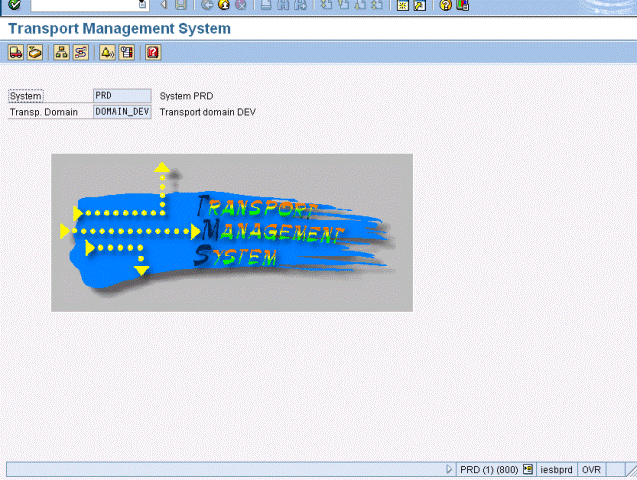
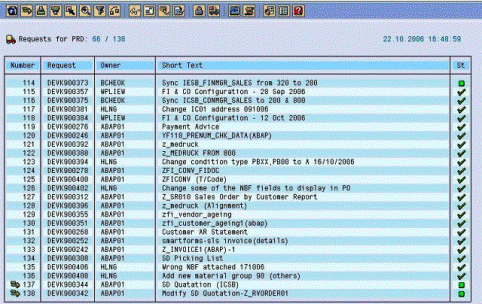
- Correction and transport system
The transaction SE10 provides the easiest way to manage any request/transport
and corrections.
- General command field formats
| /n | Skip to the next record if you are processing one batch input session
|
- Report command field formats
| %pri | Print the current report
|
- Helpful reports
| RSCLTCOP | Copy tables across clients
|
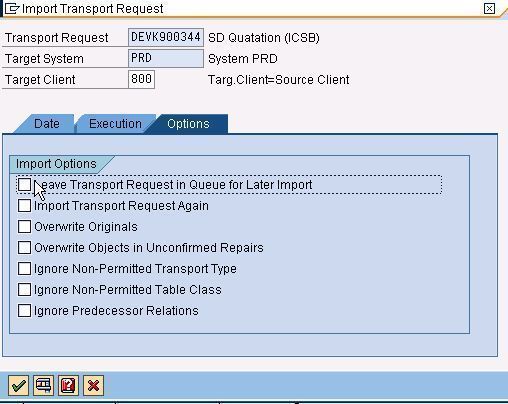
- Unconditional mode when importing or exporting a request/transport
Run the command R3trans
-u under user «SysID»adm.
- Main return codes of tp program
- Scheduling of system maintenance jobs
| RSBTCDEL | Clean the old background
job records |
- Locking the whole system
Using the command tp locksys «SysID» only the user SAP* will be allowed to login.
The command tp unlocksys «SysID» cancels the lock.
- Connection between SAP R/3 and operating system
The command sapevt can be used to trigger an event from the operation system. Thus, a job
previously defined within R/3 will be released.
- SQL code help
Run the command oerr ora «error number» under user ora«SysID».
- Oracle import and export explanations
Run the command imp help=yes under user ora«SysID». This format can also be used with exp,
impst, and expst.
Of course it does not guarantee a successful implementation. It is a great
deal of summed up aid, though.
- Team integration has to be enhanced
- Set high standards of performance for implementation team
- IT teamsand users have to work closely during the implementation
- New ways of thinking and acting must not be discarded
- Do not underestimate the user training needs
- Project management should be on the critical list
- The nearest SAP branch should be your partner
- Consultants are not always the key to succeed
- Consultants are a good source of knowledge. On the other hand, letting them make configuration
changes the transfer of knowledge will be harmed
- Foreign consultants usually do not know country-specific details
- Deepening your basis knowledge is always useful
- Avoid changing standard R/3 objects as much as possible
- Always follow the SAP rules to give names to your own objects
- Establish SAP connection as soon as possible
- Exchange information with other companies
- Focus on interfaces with non-R/3 applications
- Plan the whole environment carefully (servers, network, protocols, etc.)
- Development and production environment should be totally independent
Some special features allow you wide modifications without changing standard
SAP R/3 objects. Those
techniques are not as widespread as they should be. In fact they are powerful
tools.
- Field exit
After entering a value in a field, it can be checked through a field exit. The
system makes the field value available to be checked and changed in an
ABAP/4 function.
- User exit
Points previously set in the system that let you evaluate data. The fields available
are also previously defined by SAP. All fields value available can be checked
in an ABAP/4 program.
- Validation
It allows solid data entry regarding special rules. According to previous
rules, the system can evaluate an entry and a message can appear on the
user’s terminal if a check statement is not met. A validation step contains
prerequisite statement and check statement. Both of them are defined using
Boolean Logic or calling an ABAP/4 form.
- Substitution
Fields contents can be changed using substitution. When data are being entered,
the data can be substituted by another value regarding rules previously
defined. A substitution step contains prerequisite statement, substitution
value and substitution exit. All of them are defined using Boolean Logic
or calling an ABAP/4 form.
- Set
Values or ranges of values are specified under a set name. Sets are easier to
create and maintain instead of using tables. They give you more flexibility
when maintaining your system.
- Key words
It allows changes on field description according to data element. The short
key word used on most screen to identify the corresponding field contents
can be changed too.
- Requirements & formulas
ABAP/4 forms that can be used to handle pricing procedures, rounding rules, copy
and data transport Sales activities.
- System gets stuck
It happens mostly when archive area is overloaded. Run the program brarchive
with deletion option to release disk space.
- Short dump
Not always the problem is technical. Try to create all SAPoffice users through
transaction SO32 (create all SAPoffice users) and review your application
data carefully.
- Field exits are completely ignored
Make sure your SAP profile parameter contains the option abap/fieldexit = yes.
- Transaction SE16 (table contents) does not work properly
Make usage of the menu option to regenerate the display program. You can also
try changing key words according to field names. Choose Option -> Parameters
users.
- Rollback segments are too small
Before increasing up the rollback segment size you should verify your programs.
Very often the problem belongs to them.
- Files for rollback segments are already enormous
Check the rollback segments configuration. It has to match the allocated area
on tablespaces. Changes have to be done using Oracle tools.
- Extended help under windows does not link correctly
Check the file sapdoccd.ini under your presentation server. It must be
present in the main windows directory and should assign to help files directory.
- Release procedure with classification does not work
As a matter of fact you are not the only one to notice it. It hardly works.
Before using release strategy you should apply all notes on OSS. Pray might
be useful too.
- Transport area is overloaded
The command tp clearold «SysID» cleans up the transport
area according to parameters previously set on the plain file TPPARAM.
- Instance does not establish communication
Shutdown the whole system and check the Interprocess Communication Facilities. Any
references should be found. Either the command IPCS (UNIX) or showipc
«INSTANCE NUMBER» (SAP) show all message queue, semaphore
set and shared memory identifier. Before trying again you have to remove
them using the command IPCRM (UNIX) or cleanipc «INSTANCE
NUMBER» (SAP).
| Note: | Research based on version
3.0f under Unix, Oracle data base and Windows. |
Simple changes can rise your system security. Usage of SAProuter is a good choice
when correctly implemented. Login through SAP LogonPad (from version 3.0f
onwards) improve the access control. SAP profile parameters shall also
contain:
- Rdisp/gui_auto_logout = 1800
The user connection is closed after 30 minutes without usage.
- Login/fails_to_session_end = 3
After 3 wrong password the connection is automaticly closed.
- Login/fails_to_users_lock = 5
After 5 wrong password the user is locked.
- Login/min_password_lng = 6
Password length at least 6 characters.
- Login/password_expiration_time = 90
Password expires after 3 months.
Indeed these powerful ABAP/4 functions are very interesting and can bring some
advantages. Improve your home development easily. They belong to standard
objects and should never be changed.
- Ws_upload
Transfer files from the frontend to the application server.
- Ws_download
Transfer files from the application server to the frontend.
- Ws_excel
Download files at the frontend in excel format.
- Bp_joblog_read
Fetch job log executions.
- Rs_send_mail_for_spoollist
Send message from ABAP/4 program to SAPoffice.
- Bp_event_raise
Trigger an event from ABAP/4 program.
- So_wind_spool_list
Browse printer spool numbers according to user informed.
- So_spool_read
Fetch printer spool according to the spool number informed.
- G_set_get_all_values
Fetch values from a set.
- Rzl_sleep
Hang the current application from 1 to 5 seconds.
- Rzl_submit
Submit a remote report.
- Ws_execute
Execute an external program on the presentation server.
- Ws_file_delete
Delete file at the frontend.
- Ws_volume_get
Get the label from a frontend device.
- Ws_msg
Create a dialog box in which you display an one-line message.
- Popup_to_display_text
Create a dialog box in which you display a two-line message.
- Popup_to_confirm_step
Create a dialog box in which you make a question whether the user wishes to perform
the step.
- Popup_to_confirm_with_message
Create a dialog box in which you inform the user about a specific decision point
during an action.
- Popup_to_confirm_with_value
Create a dialog box in which you make a question whether the user wishes to perform
a processing step with a particular object.
- Popup_to_confirm_loss_of_data
Create a dialog box in which you make a question whether the user wishes to perform
a processing step with loss of data.
- Popup_to_decide
Create a dialog box in which you require the user between the two processing alternatives,
or to cancel the action.
- Popup_to_decide_with_message
Create a dialog box in which you inform the user about a specific decision point
via a diagnosis text.
Information
Technology has many key words and SAP
R/3 has introduced many others. In order to understand even better
this field you should keep in mind those terms.
- ALE (Application Link Enabling)
It provides integration for separate R/3 systems, keeping full interaction.
This makes possible distributed enterprise applications.
- Application server
The application server is used to run the business application programs in
the R/3 client/server concept. The application modules are loaded from
the data base server to the application server as required. Thus the application
server requires only storage capacity to accommodate UNIX, Swapping and
the SAP runtime environment.
- Batch Input
A technique to input data safely. It ensures application data integrity for
background interfaces. It pretends to be someone typing. See also direct
input.
- CATT (Computer Aided Test Tool)
It allows you to combine and automate sequences of repeatable transactions
in test procedures. CATT reduces the number of manual tests, and forces
you to test systematically, defining input values and expected test results.
- CCMS (Computer Center Management System)
It allows you to monitor, control and configure your R/3 system. This toolset
lets you analyze and distribute client workloads and report on resource
consumption for system components.
- Central System
In an R/3 central system, both application and data base software are run
on one computer.
- Client
In commercial, organizational and technical terms, a self-contained unit in
an R/3 system with separate master records and its owns set of tables.
- Client/Server System
Client/server systems are structured modularly, with components working in a sender/receiver
relationship. Software components can also be used in a client/server relationship.
- Communication Server
It provides the connection between local area and wide area networks and may
be either a router, a bridge or a gateway. In R/3 installations, the communication
server must support the TCP/IP protocol over wide area networks.
- Company code
The smallest organizational unit for which a complete self-contained set of
accounts can be drawn up for purposes of external reporting. This involves
recording all relevant transactions and generating all supporting documents
for legally-required financial statements, such as balance sheets and profit
and loss statements.
- Computer type
The R/3 system supports various computer types of SAP’s platform partners,
such as Bull, DEC, IBM and HP. The suitability of a particular computer
type depends on sufficient CPU performance.
- CPI-C (Common Programming Interface-Communications)
Common Programming Interface of Communication has been introduced by IBM as a
high-level interface to SNA/LU6-2. CPI-C has become the subject of the
X/Open stardarlization and is used by SAP to facilitate program-to-program
communication between R/3 and external system. SAP offers CPI-C libraries
based on TCP/IP.
- Correction
It contains all the objects that a developer has changed or created. It also
controls customizing that has been maintained.
- CSP
A system to help SAP employees to give comprehensive support to their clients.
- Data base server
The data base server stores the SAP application programs and data in the R/3
client/server concept. It also handles the SAP update program and batch
jobs.
- Direct Input
A recent technique to input data safely. It ensures application data integrity
for background interfaces. See also batch input.
- Dispatcher
The system R/3 agent that identifies the type of task (on-line, update, batch,
etc.) and sends the job to an idle work process.
- EarlyWatch
It is a service that entails having your R/3 installation regularly inspected
by SAP employees, in other to ensure high system availability and high
data throughput at all time.
- Ethernet
It is a LAN architecture using bus topology. The transmission speed is 10
MBit/s.
- FDDI (Fiber Distributed Data Interchange)
It is a local high-speed network with ring topology based on light wave conductors.
The transmission speed is 100 MBit/s.
- Field status
Indicator that specifies whether a field can take an entry in the entry screen or
if it must be filled.
- Firewall It is a means of controlling access through a public network to a privatenetwork.
- FTP (File Transfer Protocol)
It is the most commonly used file transmission protocol of the TCP/IP protocol
family.
- GUI (Graphic User Interface)
A graphical interface used by SAP environment as part of the three tiers.
It is normally called user frontend.
- IDES (International Demonstration and Education System)
It is a model of an international firm. It is a separate demonstration and
education system for speeding up the pilot process.
- IMG (Implementation Management Guide)
It is a hierarchical structure that reflects the R/3 component hierarchy and
contains every configuration activity. Released from version 3.0 onwards.
- Instance
It means application server and each one has its own set of work processes.
- IDoc (Intermediate Document)
An IDoc is a data container for data exchange between SAP systems or between
an SAP system and an external system.
- ITS (Internet Transaction Server)
It links the R/3 application server with one or more Web servers, thus enabling
the R/3 to communicate with the Internet.
- Kernel
It means a standard core previously configured. A set of default parameters
delivered with the system.
- LAN (Local
Area Network)
It is a network foa a tightly limited area with high level data transmission
performance. Common LANs include Ethernet, Token Ring and FDDI. These LANs
support different transport protocols, such as TCP/IP and IPX.
- Matchcode
A tool for finding specific record. It is made up of search terms. It is
used to find possible entries for an input field.
- Number range
A range of numbers that are laid down per file for the assignment of document
numbers. It can be internal (carried out automatically by the system) or
external (carried out manually by the user).
- OLE
It is a technique introduced by Microsoft to incorporate objects of one application
into another.
- OSS (Online Service System)
SAP’s Online Service System offers fast and effective help for R/3 System problems.
It is also the basic element of communications between customers, partners,
and SAP.
- Repair
It contains all the objects that a developer has changed but the originals
of the objects are located in another system.
- RFC
A way to implement communication between application programs via Abap/4
function call.
- Semaphores
When a work process locks a resource, it sets a semaphore. Another work process
that also wants to access it must then wait.
- SysID
A set of three letters or number that identify a system. Some sets are not
allowed because they are used by SAP. They are informed when the system
is installed.
- TCP/IP
It
is the most widely used transport protocol for open systems. R/3 clients
and servers communicate using TCP/IP.
- Telnet
It provides terminal access to hosts using TCP/IP protocol. It is a well-known
command among Systems Administrators.
- Token Ring
It is a LAN architecture with ring topology. The transmission speed is 4 MBit/s
or 16 MBit/s. This involves a ‘free token’ which circles the loop picking
up transmissions. The receiver station places a confirmation bit into the
busy token. As soon as the busy token reaches the sender station again,
it is converted back to a free token and sent on to the next station.
- Transport
It is a request to transport objects from the software development environment,
identified as the source system, to the specified target system.
- WAN (Wide Area Networks)
They are normally operated either by the telephone company or by private companies
that offer leased lines, switched lines or packet lines.
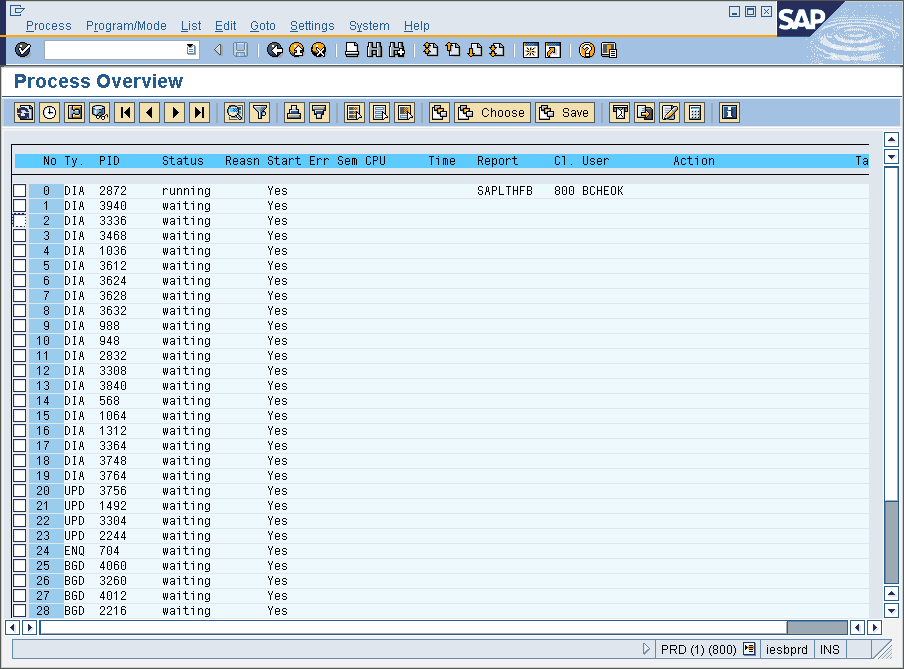
- Work process
Work processes perform the bulk of the processing carried out by SAP systems.
They perform dialog steps in user transactions and carry out updates, lock
management, printing services, and so on.
- Workbench
The ABAP/4 Workbench, a graphical programming environment, is used to create
application programs. The programming tools are accessed using buttons,
dialogs and windows.
- Workflow
It consists of time and logical sequence of work items, which are precessed
by human agents or mechanical processing units.
- X.25
It is a standardized network access protocol for the packet switching network.
The maximum transmission speed is 64 KBit/s.